Show Your Google Analytics Top Content in WordPress

Google Analytics Top Content on WordPress

If you’re a typical blog owner, one of your biggest goals is to keep visitors browsing your site. One of the best methods for doing that is to provide links to additional content on your site that your visitors might like. I’ve been doing this for a while with the “Related Articles” section at the bottom of every article (check it out if you haven’t noticed it before).

But many top-tier blogs also showcase their overall most popular posts. These are the articles that often bring in a lion’s share of the site’s traffic, so they must have something going for them, right?

There are a lot of plugins out there that help bloggers rate and publicize the popular content on their blogs. Alex King’s Popularity Contest is a perennial favorite, but it has a lot of overhead, and it often breaks when a new version of WordPress comes out. For that reason, I’ve stopped using it on my site. At one point I’d even written a simple WordPress plugin for my own use that tallied up the number of comments, trackbacks and pingbacks each post had and used that to determine “popularity.”

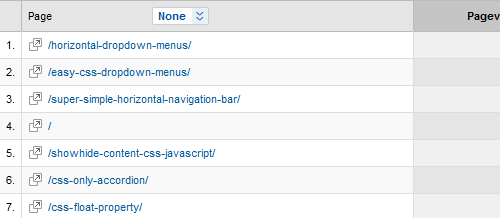
But let’s say you have a WordPress site and are tracking your stats with Google Analytics. You and I have that in common. If that’s the case, then you already know which pages on your site are the most popular. Google Analytics’ Top Content section makes it a breeze to see what pages on your site get the most traffic (Content -> Top Content, in case you haven’t found it before).

What isn’t as easy is to take that information and display it on your site. But earlier this week I figured out a pretty simple way by piggybacking on an existing popular Google Analytics WordPress Plugin.
a list of my google analytics top content

On the Shoulders

For this hack, we’re going to piggyback on the Google Analytics Dashboard plugin for WordPress. This plugin is pretty cool: once you install it and provide it with your credentials, you can see your Google Analytics stats right on your WordPress dashboard. Neat, huh?

But what the plugin lacks is any way to share this wealth of information with your readers. The plugin does come with a widget, but the widget only currently lets you display two bits of information: your pageviews over the last month, and a graph showing your pageviews over the last month. However, the plugin contains plenty of functions we can use to get at the information we need.

What You’ll Need

To get this to work, you’re going to need some things first:

  • WordPress installed (obviously)
  • Google Analytics installed (yep, that too)
  • The Google Analytics Dashboard plugin installed and operational
  • A willingness to drop a PHP script into your WordPress theme

The PHP Function

Here’s the code that makes it all happen:

1
2
3
4
5
6
7
8
9
10
11
12
13
14
15
16
17
18
19
20
<?php
$start = date('Y-m-d', (time() - (60 * 60 * 24 * 30)));
$end = date('Y-m-d');
$showpages = 5;
$thispage = 1;
 
$login = new GADWidgetData();
$ga = new GALib($login->auth_token, $login->account_id, 60);
$pages = $ga->pages_for_date_period($start, $end);
 
echo "<ul>";
foreach($pages as $page) {
	$url = $page['value'];
	$title = $page['children']['value'];
	echo '<li><a href="' . $url . '">' . $title . '</a></li>';
	$thispage++;
	if($thispage > $showpages) break;
}
echo "</ul>";
?>

Now I’ll walk you through (in general terms) what we’re doing here.

The first four lines are variables: the start date from when we want to start pulling data (I’m using 30 days before now), the end date (now), the number of posts to display, and a counter we’ll increment later.

The next three lines are hooks into classes provided by the Google Analytics Dashboard plugin. First we’re calling GADWidgetData, because it gives us easy access to the auth_token and account_id stuff we need to log in to Google. Then we use that data to get access to the GALib class, which contains all the functions the dashboard display uses. Then we use those functions to grab a list of the top pages for the duration specified.

The final lines are just outputting that data. In this example I’m putting mine in an unordered list with a link to each article and the article’s title. Once we’ve hit the number of articles we wanted to show, we stop. You could edit this section fairly easily to change the output (for example, using an ordered list might make more sense…)

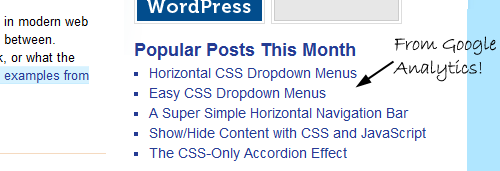
And that’s it! You now have an easy and reliable way to display your most popular posts (as determined by page views) on your site. You can see it working in my sidebar right now.

24 Comments

  1. On March 26, 2010
    12:03PM

    Jason said:

    Hey Rob,

    Really digging this! One problem though. The title of one of the results is ‘(not set)’.

    Is there any way to hide specific results?
    Check the top right sidebar.
    http://www.mesmerlab.com/

    Thanks!

  2. On March 26, 2010
    1:05PM

    Rob Glazebrook said:

    Hi Jason,

    I suppose if you knew exactly what you wanted to ~not~ display, you could do something like this in your foreach loop:

    if($title != "Naughty Title") {
    	echo '<li><a href="' . $url . '" rel="nofollow">' . $title . '</a></li>';
    	$thispage++;
    }

    That way it won’t display the article if the title is bad, and it won’t count against your total either.

  3. On March 26, 2010
    2:33PM

    Jason said:

    Ok, with your nudging, I customized it a little bit more. I passed up the ones with “(not set)” as well as the home page itself. Then I took out my website name from each title by stopping at the pipe character.

    I tried using the double pipe operator and combining both checks, but each combination that I tried was letting both results through.

    if($title != “WordPress Development – Magento Development – Mesmer Lab”) {
    if($title != “(not set)”) {
    $newtitle = substr($title, 0, strpos($title, “|”));
    echo ‘‘ . $newtitle . ‘‘;
    $thispage++;
    }
    }

    If I were into building WP plugins, I might query the GA results and list them with checkboxes next to each. An admin interface for choosing which results to display would be more user friendly and portable.

  4. On March 29, 2010
    8:15AM

    Jordan Walker said:

    That is a really neat feature to show which of your articles is more popular than the others.

  5. On March 30, 2010
    7:38AM

    Gieroj said:

    Very nice and simple. I was just looking for something like this

    Thank you for sharing

  6. On April 04, 2010
    12:26PM

    Sravan said:

    Excellent find – this is very useful – I will plan to include this in my site soon – thanks for the share

  7. On April 05, 2010
    10:09PM

    Different-guy said:

    Excellent tips, thnx for sharing

  8. On April 16, 2010
    7:52AM

    Adriana said:

    Is it possible to show a thumbnail image?

  9. On April 18, 2010
    2:18PM

    Kat Fulton said:

    Great. Thank you for sharing! I’m trying to do this…

  10. On April 30, 2010
    11:12PM

    Reading Articles said:

    The related post entries is a good way to make your visitors stick to your site along with finding content easily for viewers in which they are interested.

  11. On May 23, 2010
    12:46AM

    James said:

    Awesome widget idea–I’ll be implementing it ASAP. One quick question though. Any way to maybe include number of views in the given time period? Thought about including that in parentheses after the title, but no idea how best to do that. It’s probably in the GAD documentation, but I haven’t gotten to investigating that deeply yet.

  12. adi said:

    Thanks for sharing this info…

  13. oezman said:

    Thanks for this post. To me it’s not clear WHERE to paste the php-code you provide. Could you please be more specific in this?

    Thanks so much!

  14. Rob Glazebrook said:

    Hi Oezman,

    The “where” is simply wherever you’d like the analytics information to appear. You’ll have to edit one of your WordPress theme’s PHP files in order to make it happen. In my case, I wanted the information to appear in my sidebar, so I opened up sidebar.php in my theme’s folder, found the spot I wanted it to occupy, and dropped the code in there.

    If you wanted it to show up in the footer, you’d generally edit footer.php. If you wanted it just above/below your content, you’d generally edit index.php or home.php (depending on how your theme is set up, not all of these files may exist).

    But the basic idea is, drop the code in where you want it to show up. :)

  15. Bruce said:

    Thanks for the tip! Currently I’m using

    Top 10 Plugin via Popular Posts by:
    http://ajaydsouza.com/wordpress/plugins/top-10/

    I may give Google Analytics Top Content plugin a try in the future.

  16. relax tone said:

    I may give Google Analytics Top Content plugin a try in the future.

  17. Brett Widmann said:

    This was really helpful! Thanks for tips and code.

  18. Matilda said:

    Hi. Thanks a lot for this. I was looking for this as a plugin but it comes with a credits link, which I dont’t like. I saw these changes that Jason did. But I have no idea where to implement them in the code. I’m a complete noob with php so, could someone PLEASE paste the entire code with Jasons changes? I would be very happy. Thanks.

    ps. i can get it to work just fine, as long as I stick to the code without the changes.

  19. Tafreevar said:

    Hi Rob,
    First of all, thanks for your precious tip to show popular posts.
    I’ve been successfully using your php function along with “google analytics dashboard 1.0.6″ on my blog.
    But recently the plugin’s been updated to “2.0.1″ and your php function doesn’t work anymore.
    Would you please update your php function?
    Thanks in advance.

  20. On April 06, 2011
    8:19AM

    Jeroen said:

    Nice idea, but you’ll get logged out of google analytics after a while and then your blog will show an error rather than top content.

  21. On June 20, 2011
    1:56PM

    Simon said:

    Hey Rob, this sounds like a grand snippet. However I get no output from it, what could’ve gone wrong? Thanks a lot for the post.

  22. adi said:

    indeed, very nice tool. thanks!

  23. adi said:

    look here another interesting tool:

    http://freshwebtrends.com

  24. On August 23, 2011
    11:56AM

    Travis Tubbs said:

    The good news is this method still works, but the plugin has gone through a change in the login method (yay OAuth!). After doing a little bit of editing, I was able to get this to work on my site. I also changed the way this works by making it a function and adding an array to hide unwanted titles. The code is below. Thanks for discovering this in the first place! Love it!

    // Display Popular Posts based on Google Analytics
    // via http://www.cssnewbie.com/google-analytics-top-content-in-wordpress/
    // using http://wordpress.org/extend/plugins/google-analytics-dashboard/
    // updated for oAuth using gad-widget-data.php
    function ga_popular_posts() {
    // User Parameters
    // How far back to search (in days)?
    $searchrangedays = 30;

    // Show how many posts?
    $showpages = 5;

    // Hide specific posts (by title)?
    // add additional ‘$gaHidePosts[] = “Title”;’ (without ‘single quotes’) to hide more posts.
    $gaHidePosts = array();
    $gaHidePosts[] = “Naughty Title”;

    // Do Not Edit Below This Line
    $start_date = date(‘Y-m-d’, time() – (60 * 60 * 24 * $searchrangedays));
    $end_date = date(‘Y-m-d’);
    $thispage = 1;

    $login = new GADWidgetData();
    if($login->auth_type == ‘oauth’) {
    $ga = new GALib(‘oauth’, NULL, $login->oauth_token, $login->oauth_secret, $login->account_id);
    } else {
    $ga = new GALib(‘client’, $login->auth_token, NULL, NULL, $login->account_id);
    }

    $pages = $ga->pages_for_date_period($start_date, $end_date);

    $gaPopularPosts = “”;
    foreach($pages as $page) {
    $url = $page['value'];
    $title = $page['children']['value'];

    if( !in_array($title, $gaHidePosts) ) {
    $gaPopularPosts .= ‘‘ . $title . ‘‘;
    $thispage++;
    }

    if($thispage > $showpages) break;
    }
    $gaPopularPosts .= “”;

    echo $gaPopularPosts;
    }

2 Responses Elsewhere

  1. Wordpress Top Posts Based On Google Analytics said:

    [...] post is inspired by Rob’s post. I just added some filtering. My first php lines of [...]

  2. On July 05, 2011
    12:38AM

    Álvaro Martínez Majado said:

    [...] There is a way for showing the most popular posts in a WordPress installation grabbing the data from Google Analytics. [...]

Leave a Comment